The uPBX HubSpot CRM Integration enhances customer relationship management by integrating your call activities directly with your existing HubSpot CRM.
It features call journaling (with optional automatic contact creation) and automated CRM Smart Open where the callers contact page is loaded on your computer.
The integration’s CRM Smart Open functionality opens the appropriate HubSpot page based on the caller’s information:
- Contact Page: Opens if the caller ID matches an existing contact.
- Search Page: Opens when the caller ID matches multiple contacts, or if the caller ID is private or unknown.
This integration streamlines workflows, ensuring all interactions are efficiently managed and recorded.
Tip
Note: This guide assumes that you already have a working version of the CRM configured.
uPBX Configuration
Step 1 Sign in to your Hubspot account.
Make sure you have logged in to your Hubspot account on the computer you are using to connect with uPBX (also known as myCloud PBX)
Step 2 Click the 'Connect Hubspot' button.
Step 3
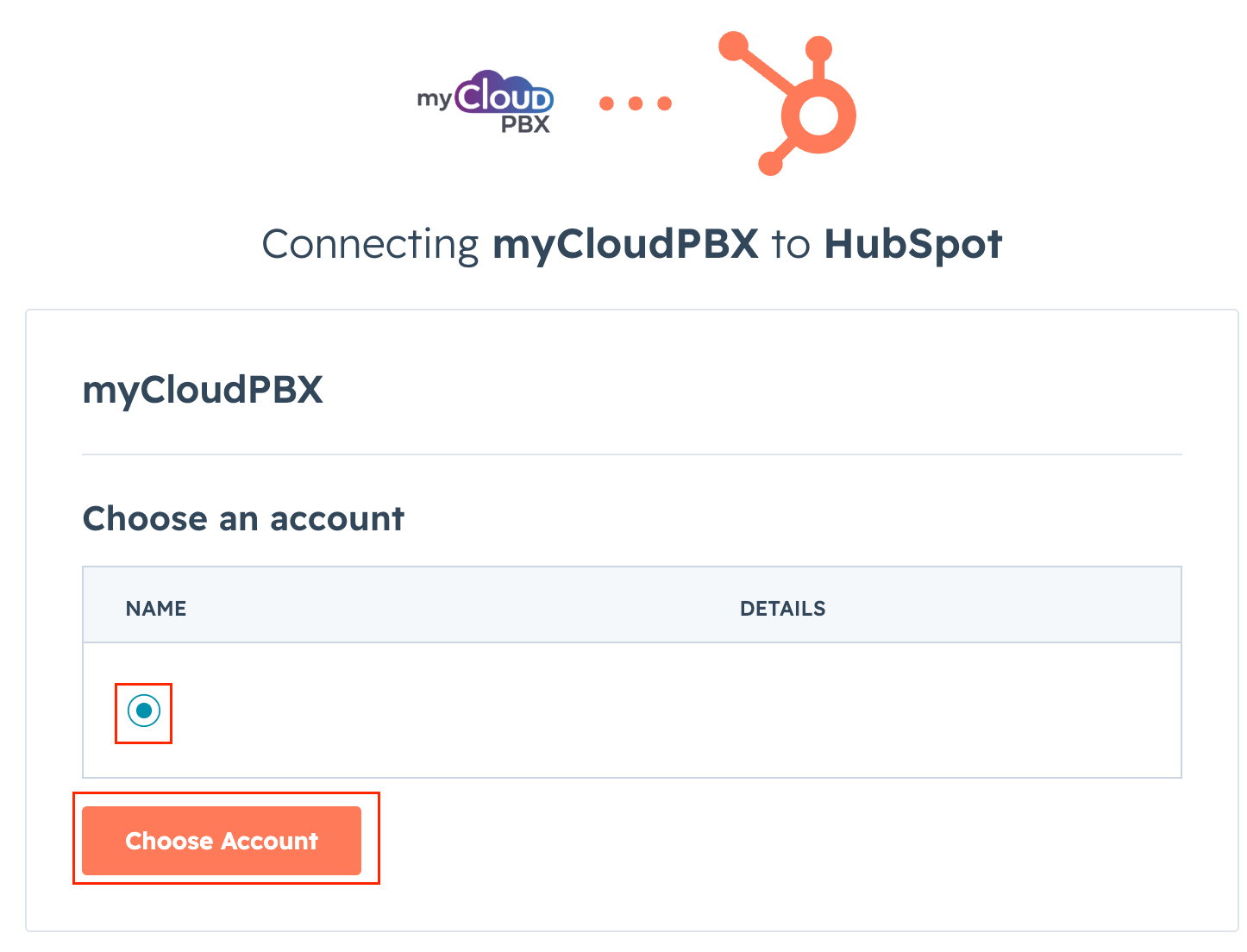
A browser tab will open asking you to Connect your uPBX account to HubSpot.
Select the account, then click 'Choose Account'.
Step 4
Click the 'Connect app' button.
Hubspot is now connected to uPBX.
Step 4
Select your number format, then press the 'Test' button
Tip
Number Format: Choose between local (eg 0731051300) and E164 (eg +61731051300).
Once the test has completed you'll see the following message.